


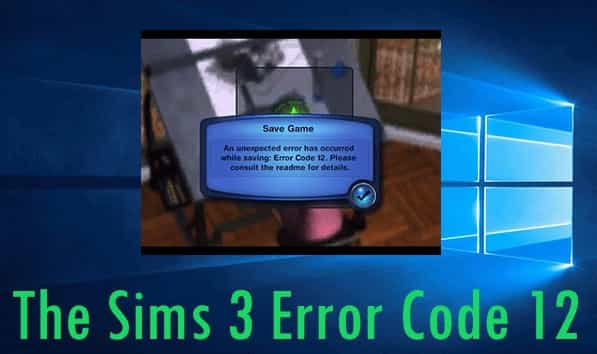
Sims 3 Error Code 12: We agree that EA’s The Sims is one of the best life simulator games. Unfortunately, players are experiencing an error while playing Sims 3.
As a result, players cannot save their progress when error code 12 occurs. However, we were able to uncover several solutions to resolve the problem.
So, here’s our guide on fixing the Sims 3 issue code 12:
How to Fix Sims 3 Error Code 12?
Check Update for graphics driver
- To find the Device Manager, press the Start button and type “device manager” into the search box.
- To expand your Graphics driver, double-click on the Display adapters.
- Select Update Drivers from the context menu when you right-click on the graphics driver.
Remove unwanted background processes that are currently running.
- To launch the Task Manager, press Ctrl + Alt + Del.
- Select the processes using up too much of your RAM in the background.
- To get rid of them, click the Finish Task button.
Increase the RAM Allocation
- Look up the setting to alter the Performance and appearance of Windows, and then click on the settings.
- Go to the Advanced tab and select the Option to Change under Virtual memory.
- After that, remove you’re Automatically managing the paging files Size option.
- Choose from the C Drive and then click on the Custom size option.
- You must type two GB (2000 MB) more than the currently assigned size of the file.
- Be sure to write the same size as you did on the initial size and your maximum.
- Then, click on the OK. After that, click Apply. This will apply your settings to be saved.
- You may require restarting your device to apply these adjustments.
Reduce the Graphics Settings
- Start the game and hit the three dots button to open the options.
- Select then the Graphics tab.
- Set the settings in the details settings down to their lowest setting.
- In the case of some gamers, playing games in windowed mode has also proved to be effective. You can therefore remove the checkmark option to enable Fullscreen mode.
Clearing out the Corrupted Saved Files
- Navigate to the saved game file of Sims 3. The files are usually located in the Documents folder for Mac and Windows players.
- The Documents folder’s default location or My Documents Electronic Arts > The Sims 3 > Saves.
- Several folders end with a bad extension. These are the files that contain unsuccessful saves.
- Select these folders, and eliminate them.
- Then, choose the files that end with sims3 and .backup extension and transfer them into a different folder.
- Change the name of the folder and keep these files for backup.
- Start the game to see whether you can easily keep track of your progress.
- I hope that one of the solutions will help you solve the issue. If none of the solutions did the trick, head to EA’s forum. EA Forum for more assistance.
- This is how you can resolve this error message 12 from Sims 3.

She is a freelance blogger, writer, and speaker, and writes for various entertainment magazines.