



Has your Windows computer crashed, stopped working, or refuses to boot? If so, you may encounter the error “Your PC ran into a problem and needs to restart.”
This is a common and generic PC error, often called “blue screen of death”. We will explain each step of this error: what it means, how to find out what your specific PC problem is, and how to fix it.
What is the error “Your PC ran into a problem and needs to restart”?
Above is a picture of the “Your PC ran into a problem and needs to restart” error screen. It is often called the “blue screen of death” (or BSOD) error. You can find out why!
This example says, “We will reboot for you.” The screen may also say “We are only collecting error information, and then we will reboot for you.”
This error screen generally occurs when your computer has shut down or restarted unexpectedly, or if something is stopping the startup.
At the top of the screen is a sad face, followed by the message of the problem. Then a line is read:
For more information on this problem and possible solutions, visit https://www.windows.com/stopcode
Type this URL into your Internet browser and it will take you to the Microsoft support page. Since these errors can occur for a variety of problems, the support on this page is generic and not specific to your problem. You can also scan the QR code (that’s the section at the bottom left) on your phone to go to the same page.
The most pertinent part of this screen is at the bottom, where a “Stop Code” is listed. In our example, the stop code is “BAD_SYSTEM_CONFIG_INFO”. Yours could be something different. This is because a stop code is an identifier that helps you understand why you received this error in the first place.
You must write this stop code for future reference. If you are in an organization, take this stop code to your local administrator so they can help diagnose the problem.
If you are a home user, contact Microsoft support, follow their automated help, then when you contact an agent, they can give you the stop code.
There are hundreds of possible stop code errors. Some other examples are:
- CRITICAL_PROCESS_DIED
- SYSTEM_THREAD_EXCEPTION_NOT_HANDLED
- IRQL_NOT_LESS_OR_EQUAL
- VIDEO_TDR_TIMEOUT_DETECTED
- PAGE_FAULT_IN_NONPAGED_AREA
- SYSTEM_SERVICE_EXCEPTION
- DPC_WATCHDOG_VIOLATION
How to fix specific stop code errors
We have written articles on how to fix specific stop code errors. If you see your mistake in the list below, click to visit that article. If yours isn’t listed, read on for some general troubleshooting tips.
How to fix an error “Your PC ran into a problem and needs to restart”
As mentioned, there are many reasons why you may see a “Your PC ran into a problem and needs to restart” error, which means the guaranteed solution cannot be provided. However, there are things that are more likely to cause these errors. As such, follow these troubleshooting steps and you may be able to fix the problem.
1. Unplug external hardware
Have you recently connected a new external drive, mouse, keyboard, or the like to your computer? If so, this could be causing the problem.
Unplug everything you don’t need and see if the problem goes away. If so connect a device reboot and see if everything is stable. Repeat this process until you identify the faulty hardware, then contact the manufacturer.
2. Uninstall recently added software
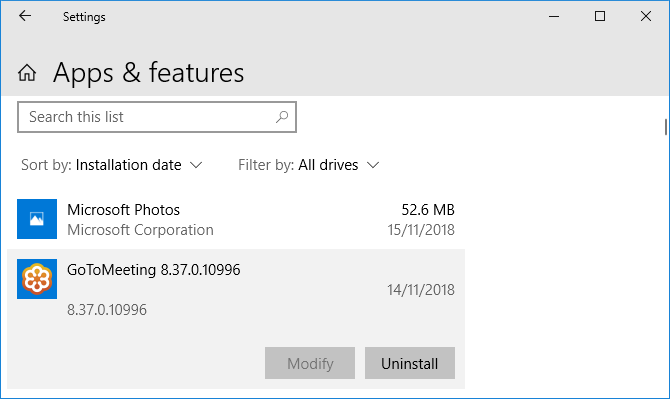
The software you download and install can cause unexpected problems. If you get the blue screen error after you’ve recently installed something, you should remove it. This can often happen with antivirus software.
To uninstall a program, press Windows key + I to open the settings. Click Applications. This opens a list of all your installed programs. About him Sort by drop-down click here and change it to the Installation date.
Now the most recently installed programs will appear at the top. To remove one, select it from the list and click Uninstall.
3. Reversal controllers

A driver is a piece of software that helps Windows 10 control hardware. For example, your graphics card, printer, and network adapter use drivers.
Drivers are regularly updated to ensure compatibility with the latest version of Windows 10. However, sometimes a driver update can harm your system. As such, you may need to roll back a driver update, that is, roll back to a previous version.
To do this, press Windows key + X and click Device administrator. This tool shows categories like Display adapters and Monitorswhat can you double click to expand and view the devices inside.
The right button of the mouse a device and click Properties> Driver. Look at Driver DateThis will tell you when the driver was last updated. If the date matches when you started having problems, click Roll Back Driver (if available) or Uninstall device (the device will be reinstalled when you reboot).
4. Update Windows 10

Windows 10 should automatically stay updated, but there may be an update in the download queue that has not been processed.
Keeping Windows 10 up to date is important because it means that you will take advantage of the latest features and bug fixes. Your blue screen error could be occurring due to software or hardware incompatibility that was resolved in a recent update.
To verify, press Windows key + I to open Settings and click Update and security> Check for updates. If there are updates, follow the prompts to download and install them immediately.
More help and troubleshooting tips
If the above tip didn’t help you get rid of the “Your PC ran into a problem and needs to restart” error, don’t worry. We have another complete guide with more support on how to solve the blue screen of death.
Analyze your blue screen error with advanced tools
Hopefully, this has helped you understand the meaning of the error “Your PC ran into a problem and needs to restart” and guided you to the relevant support.
If you still need help and are an advanced user, you can resolve blue screen errors using third-party programs.

She is a freelance blogger, writer, and speaker, and writes for various entertainment magazines.